IronCAD Mechanical V. 2027.01
Check BOM Data
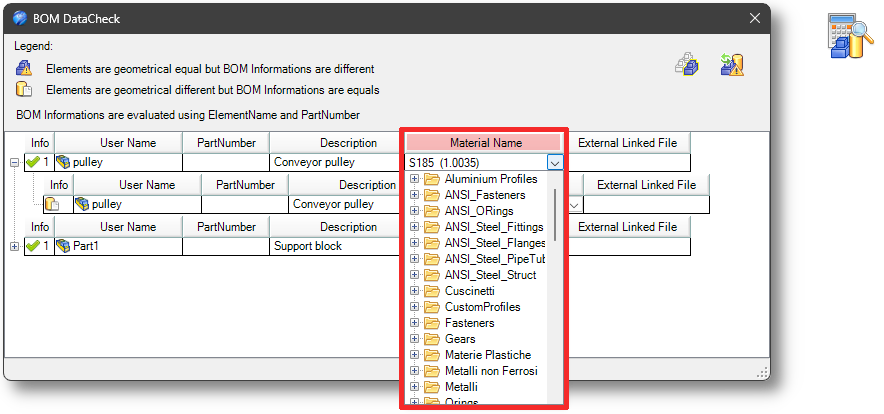
In the CheckBOM command, a column for material verification has also been added. This tool verifies whether elements have different shapes but share the same Name/PartNumber. It also reports elements with identical shapes but different Names/PartNumbers. Material has now also been added to the check.
LinkManager
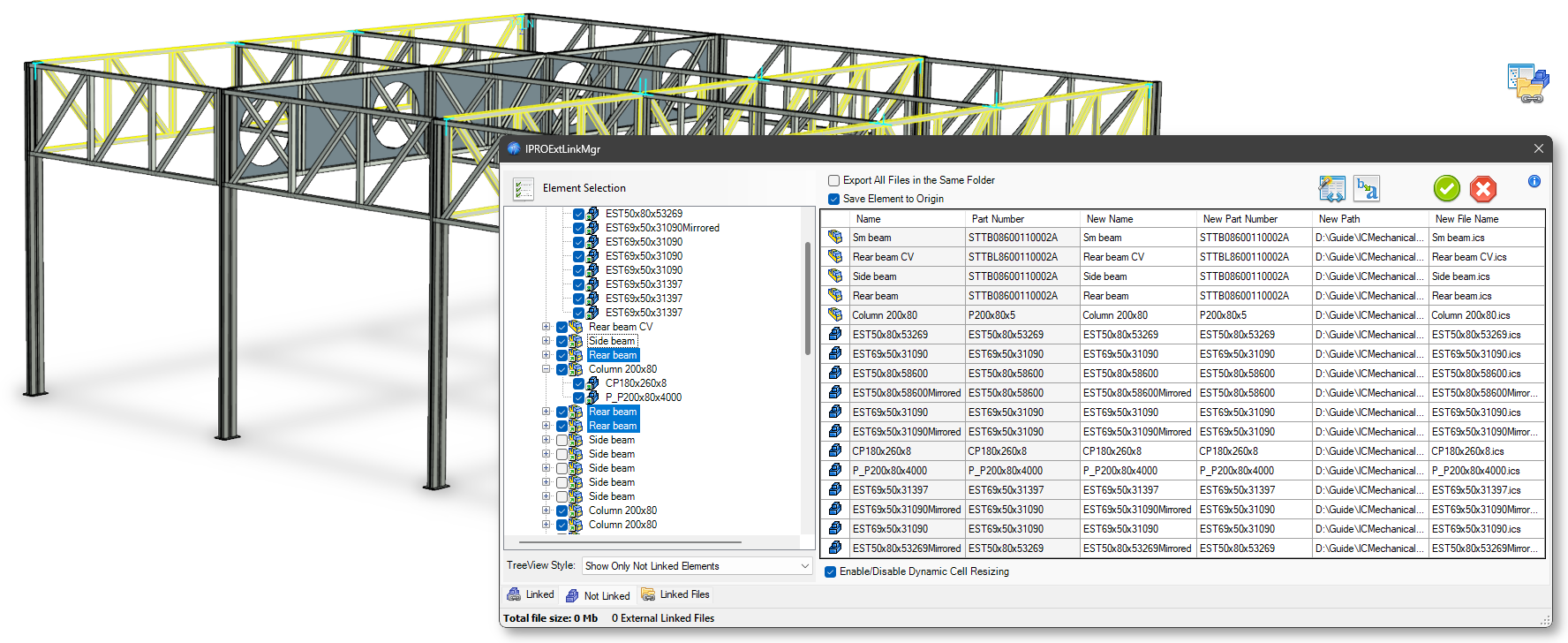
Added functionality to manage internally linked elements placed in different assemblies. IronCAD does not support - and prevents - the external saving of one of these links while maintaining the connection. With the “Save Unlinked Elements” operation, such elements are now saved and then re-linked as external links to all previously internally linked elements.
Numbering
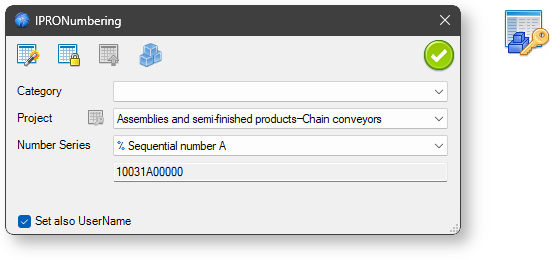
Implemented the ability to define a persistent, generic counter that is not associated with any project. To define this type of counter, the name must start with %.
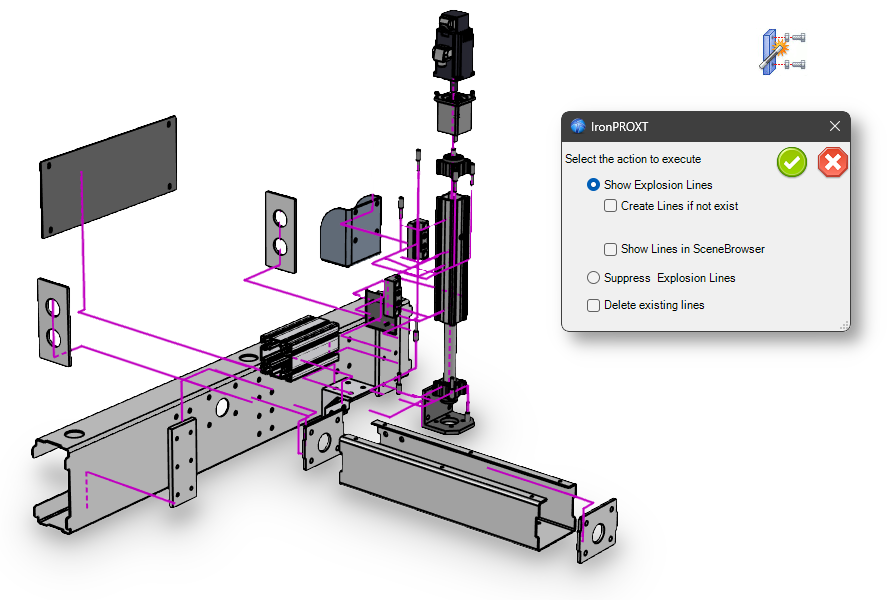
Create Explosion Lines
Explosion lines are now drawn orthogonally.
Steels
When creating a profile along a path in sweep mode, the selected profile is copied and embedded into the new part. This allows the generated profile to be controlled through any constraints and parameters defined in the original profile.
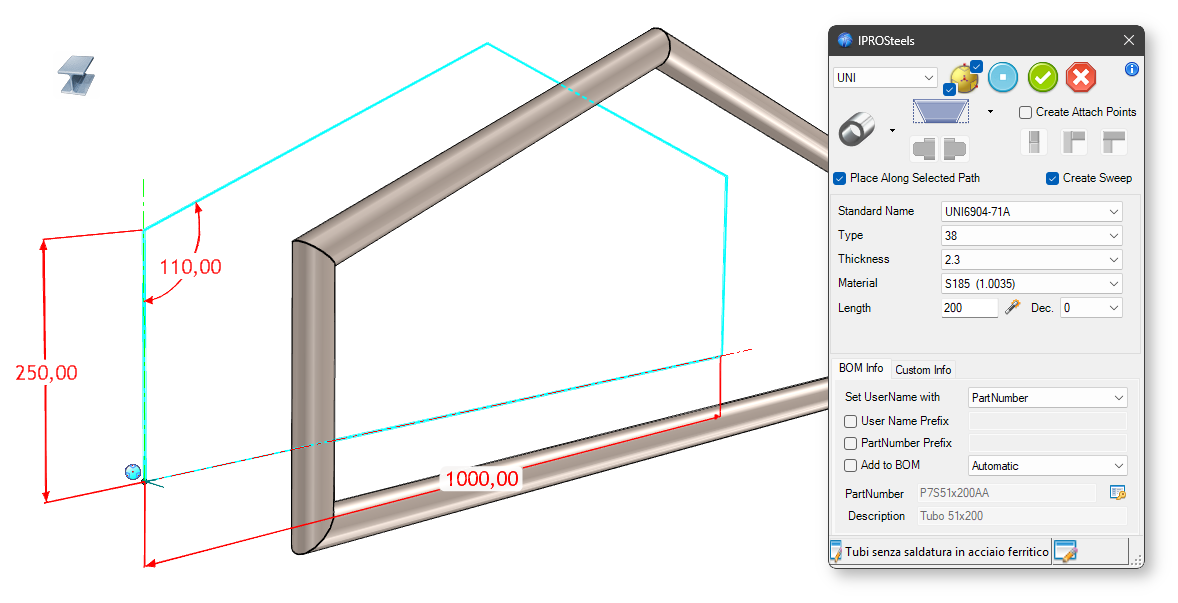
Dialogs have been updated to allow changing the component type. The interface is now more consistent, including how the element’s display mode is configured.
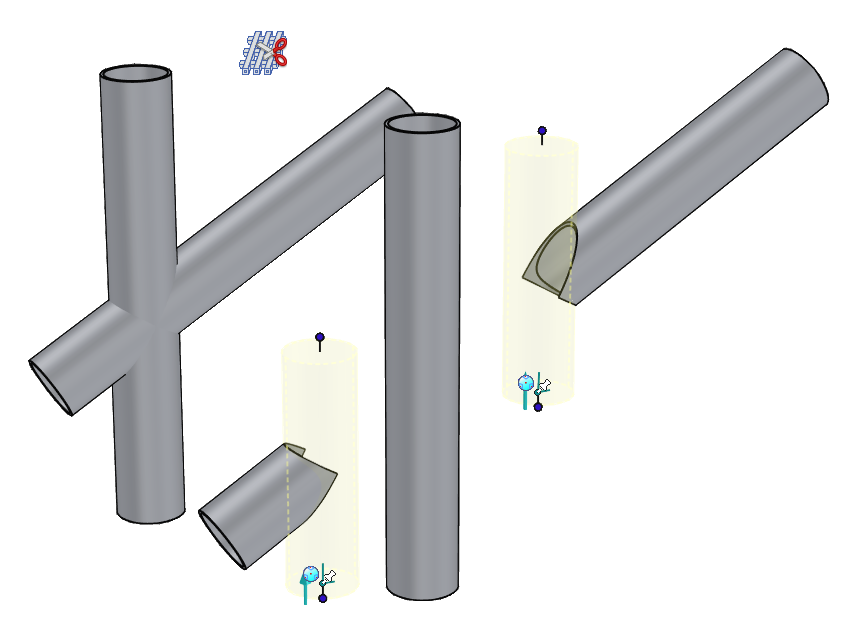
Trim at intersection
Trimming on tubular profiles is now performed using the negative shape of the reference tube rather than a flat reference face.
Create Steel Stiffener
The interface for placing steel stiffener has been improved. Create holes: If the checkbox is active, you can enter values for the holes, their diameters, and their distances. You can now add the desired number of holes using the table, choosing the number of rows and columns.
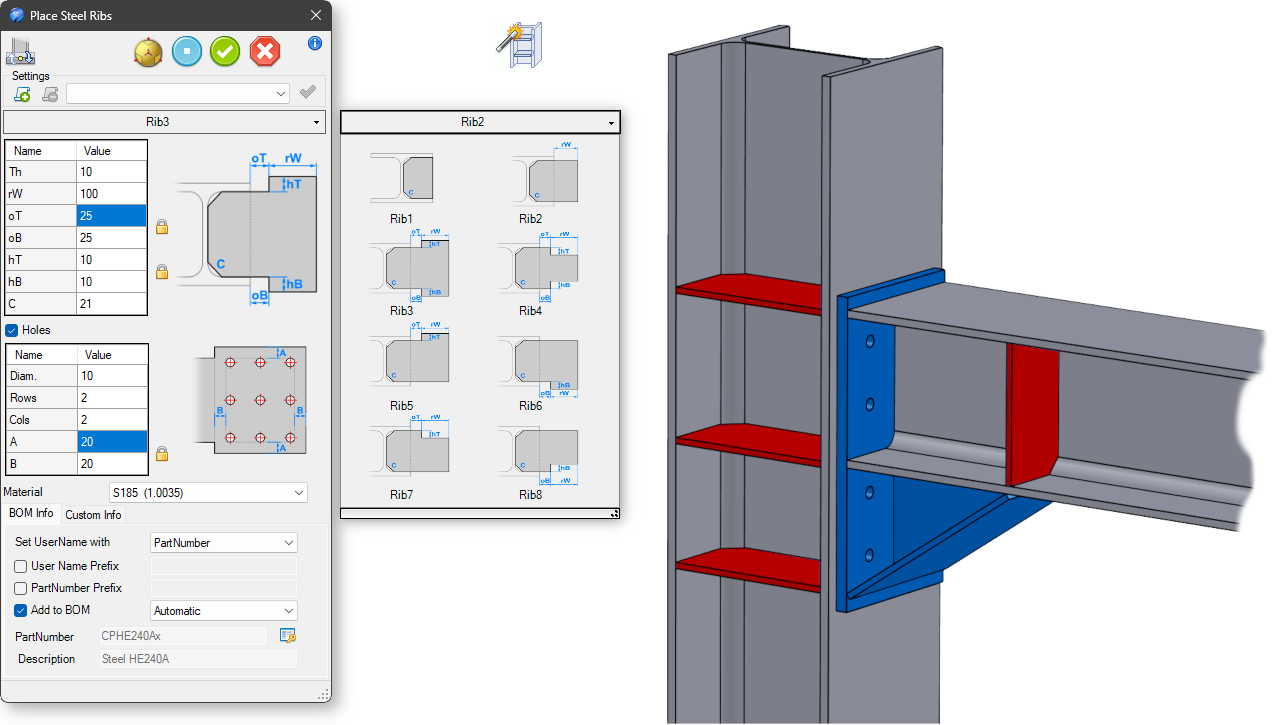
An option has been implemented to place reinforcements on H-profiles in a single operation. Management of lateral reinforcements on C and H profiles has also been improved.
Steel Lib
This new tool allows you to apply joints to steels.
The Place Steel component’s interface is similar to that of the Steel Stiffener.
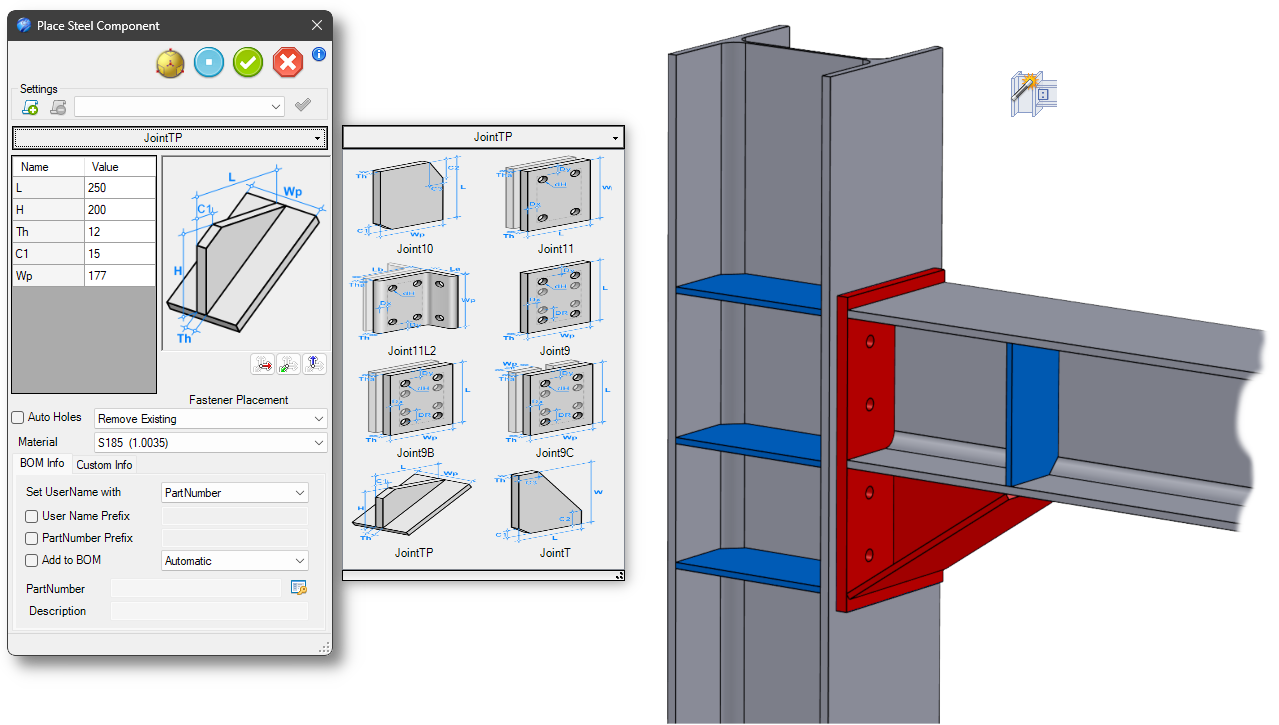
You can also automatically create holes in the steel and/or insert fasteners directly by selecting bolts from the list.
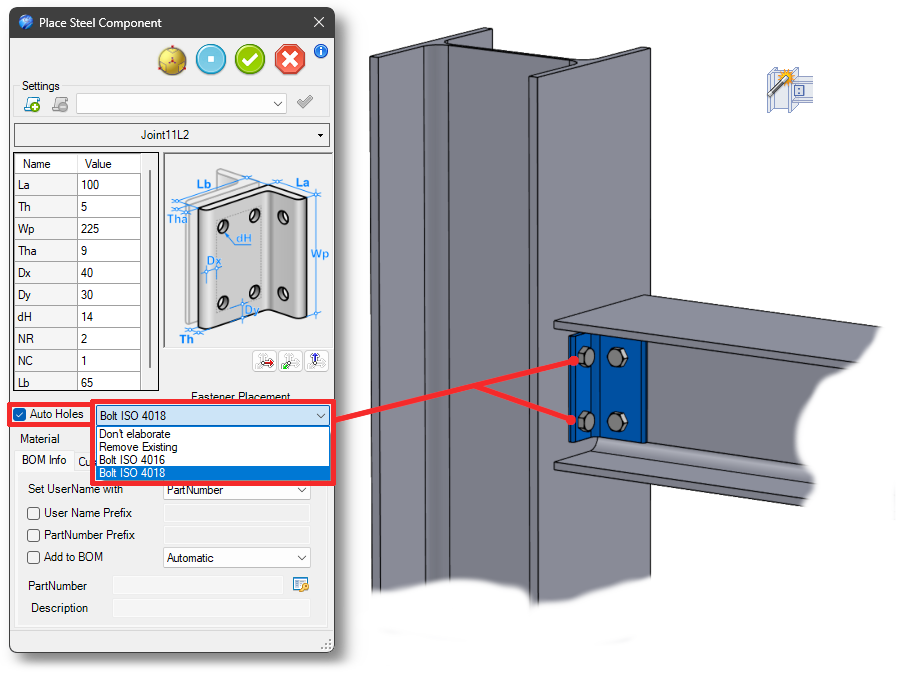
You can also add components to the library as a user.
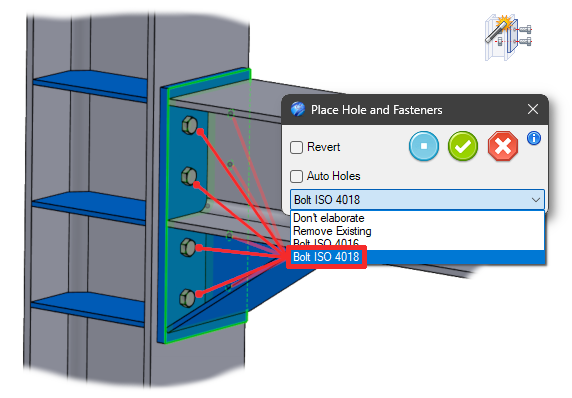
Place Hole&Fasteners
This new tool allows you to place bolts in all the holes on a steel plate.
You can also add the corresponding holes to the steel beneath
Custom Steels
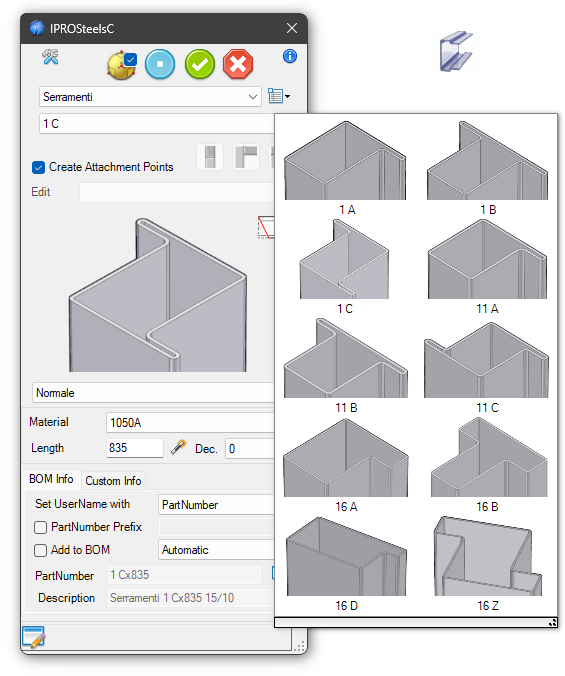
The dialog boxes have been updated to allow you to change the profile type. The interface is now more consistent, including the configuration of the element’s display mode.
When you change the profile, the attachment points are regenerated (if necessary). This ensures that any connected profiles are linked correctly, preventing them from shifting to unpredictable positions.
Color and texture information is now also retrieved from the library profile.
New profile types for windows and doors have been added
ProActiveManager

Material and Color
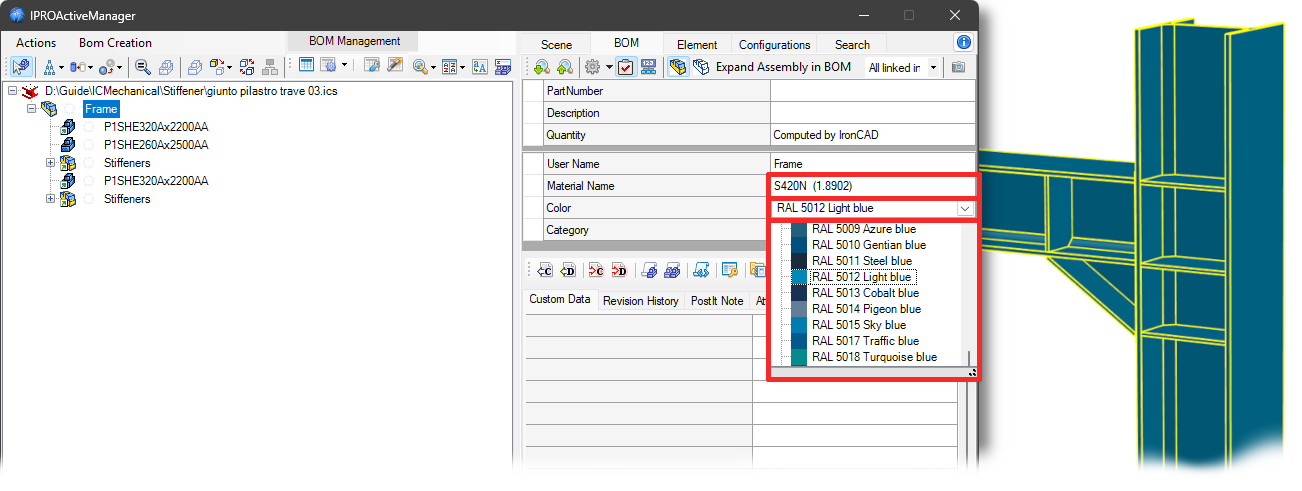
When creating multiple BOMs for selected assemblies, only a single BOM is now generated in the case of identical elements. Added the ability to assign and display Material and Color at the assembly level.
TreeView
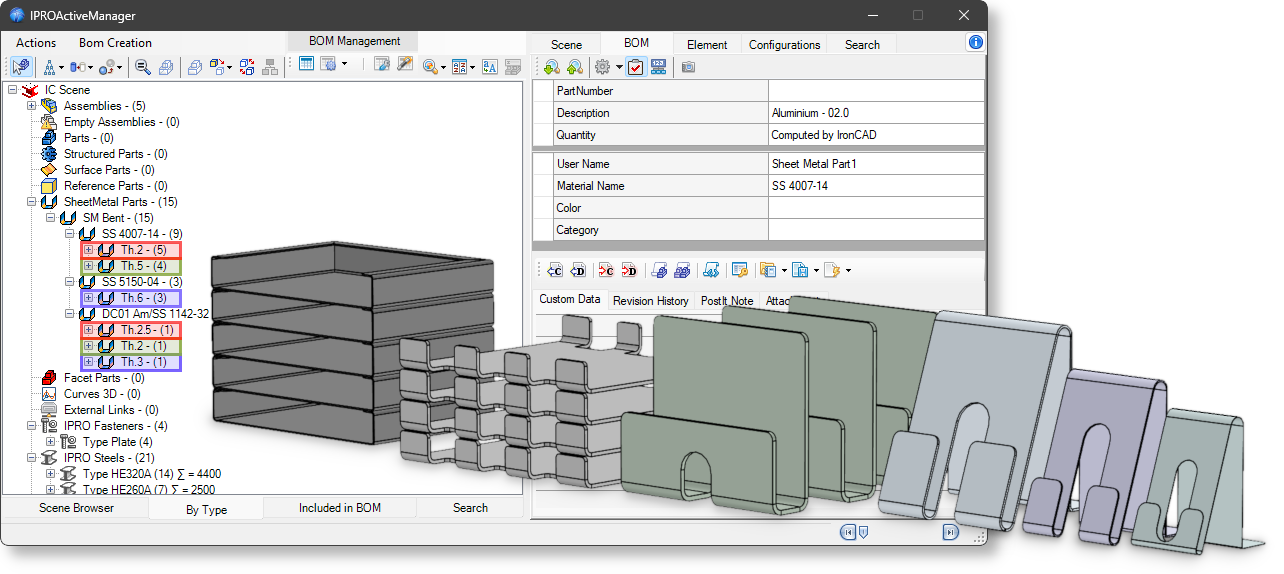
In the type tree view, an additional level has been introduced for sheet metal parts to group them by thickness.
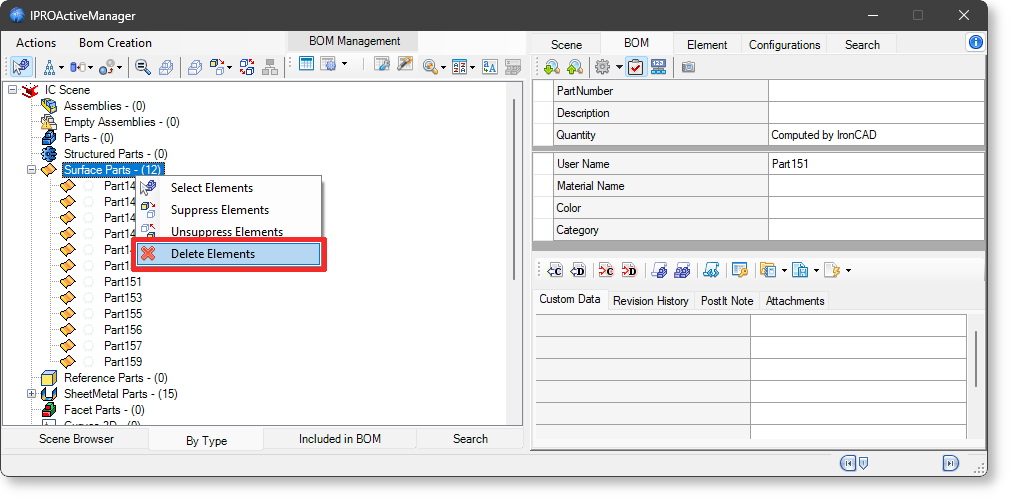
A context menu has been added to the ByType tree view, which becomes visible when selecting the group of surface elements. This menu allows deletion of the selected elements.