Get Coordinates
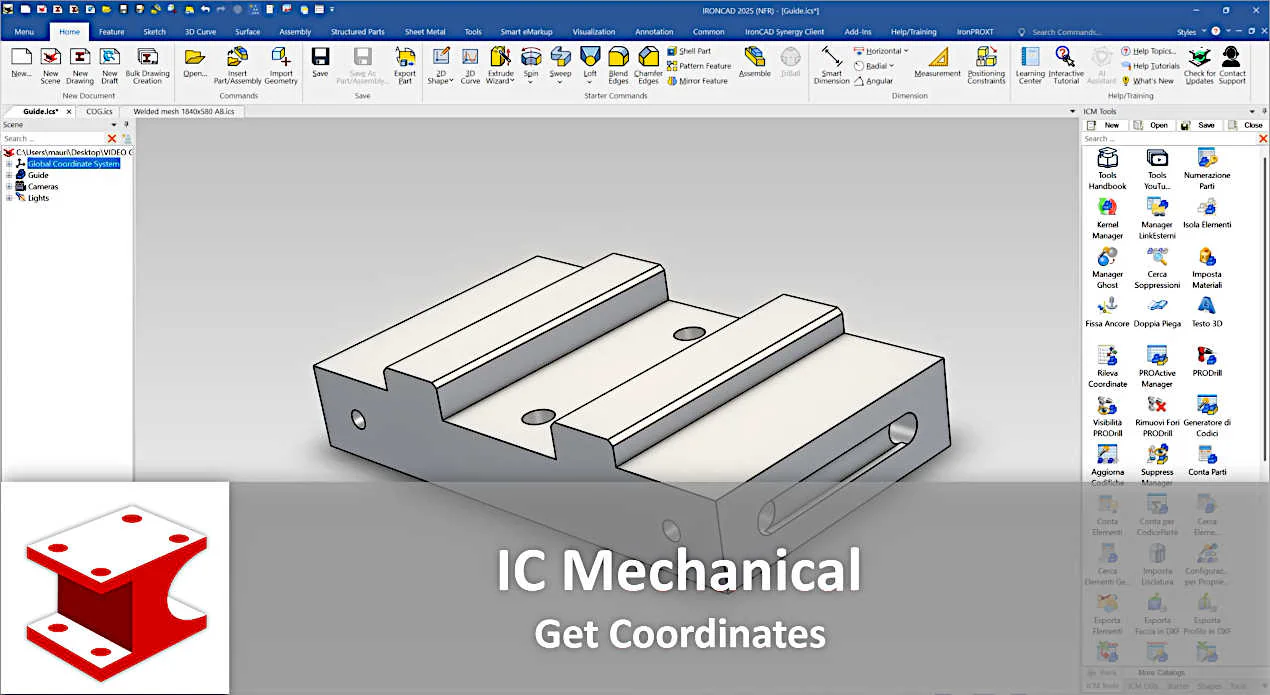
 Get coordinates, returns the coordinates of the points selected in the scene.
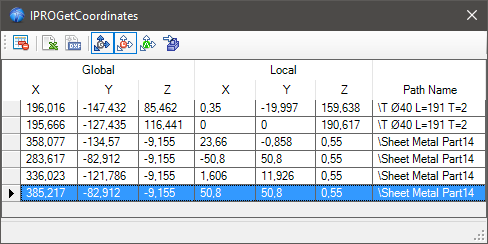
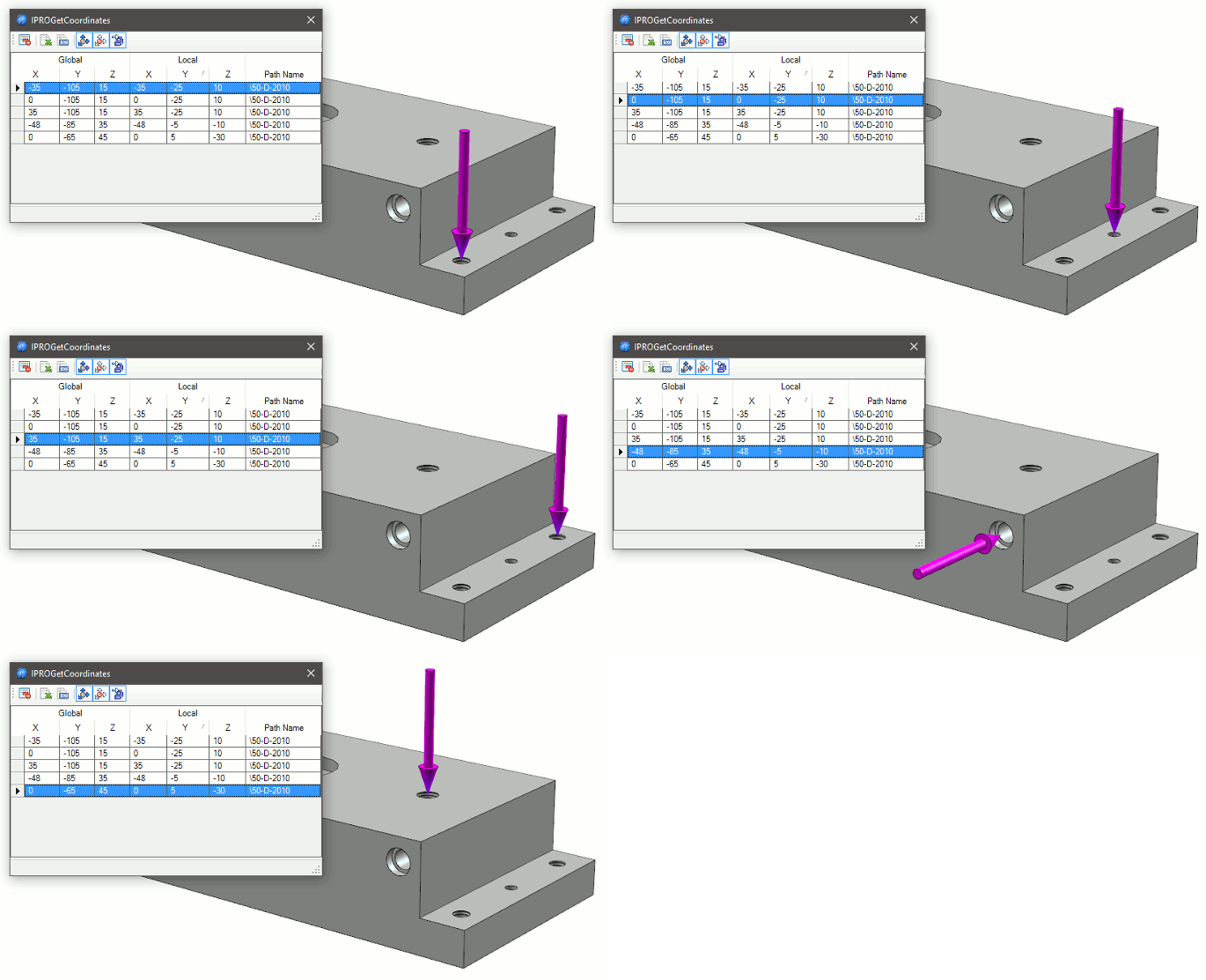
Drag each time the command to the desired point, the window will be increased the list of selected points.
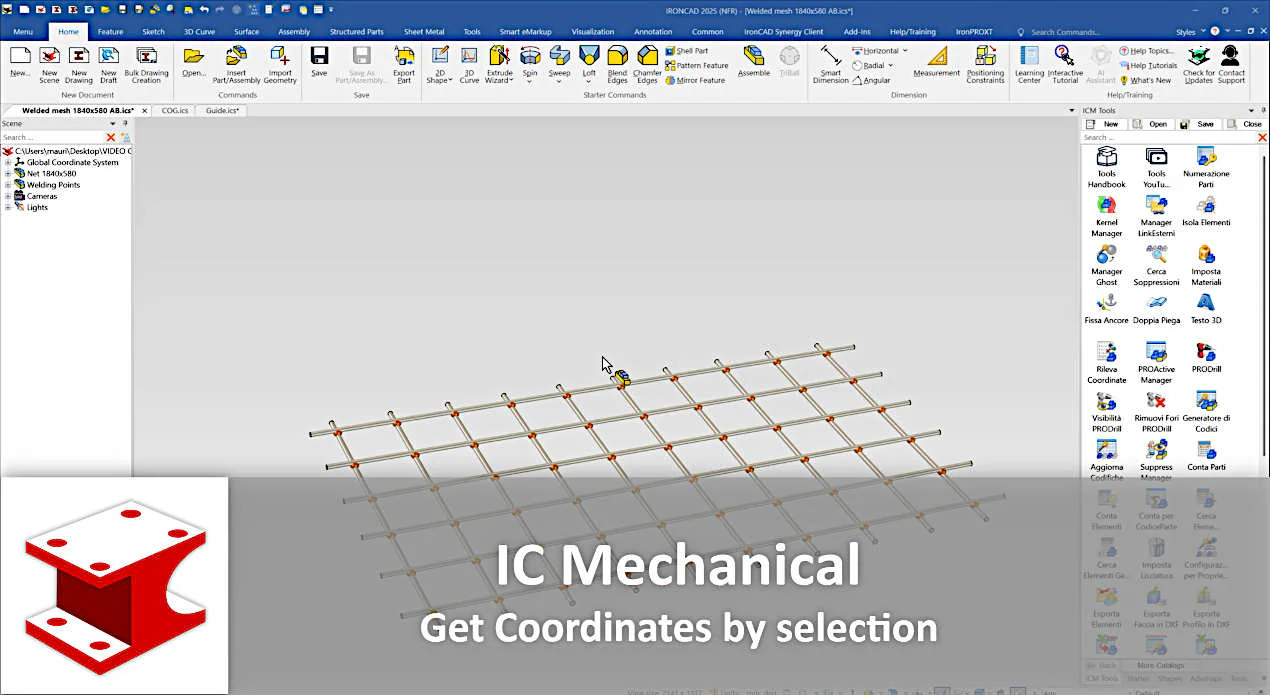
Tip for detecting the coordinates of multiple objects
If you drop the tool in to the scene with an active selection and hold down the Shift key, all selected elements will immediately be transferred to the grid.
In the top of the dialog are icons for:
- delete a line
- export the list to Excel
- export the list to DXF file
- display global coordinates
- display local coordinates
- display coordinate from the anchor of the element
- display an arrow pointing to the selected point
Tip for detecting COG coordinates
Furthermore, when dragging while holding down the right mouse button, the COG coordinates of the element on which the tool is released are detected.
When releasing the tool on a sphere, the center point of the sphere is always calculated, rather than the point on the outer surface.

Info
When exporting to DXF, you can set the graphic characteristics by editing the
DXFTemplate.dxf fileThis is a standard DXF file which can be edited for the client’s purpose; it is used as a template to export the coordinates (obtained from the model) in DXF.
It is located in the ..\Drawing folder in the Templates folder that you set up in the General tab.