Create Steel Stiffener


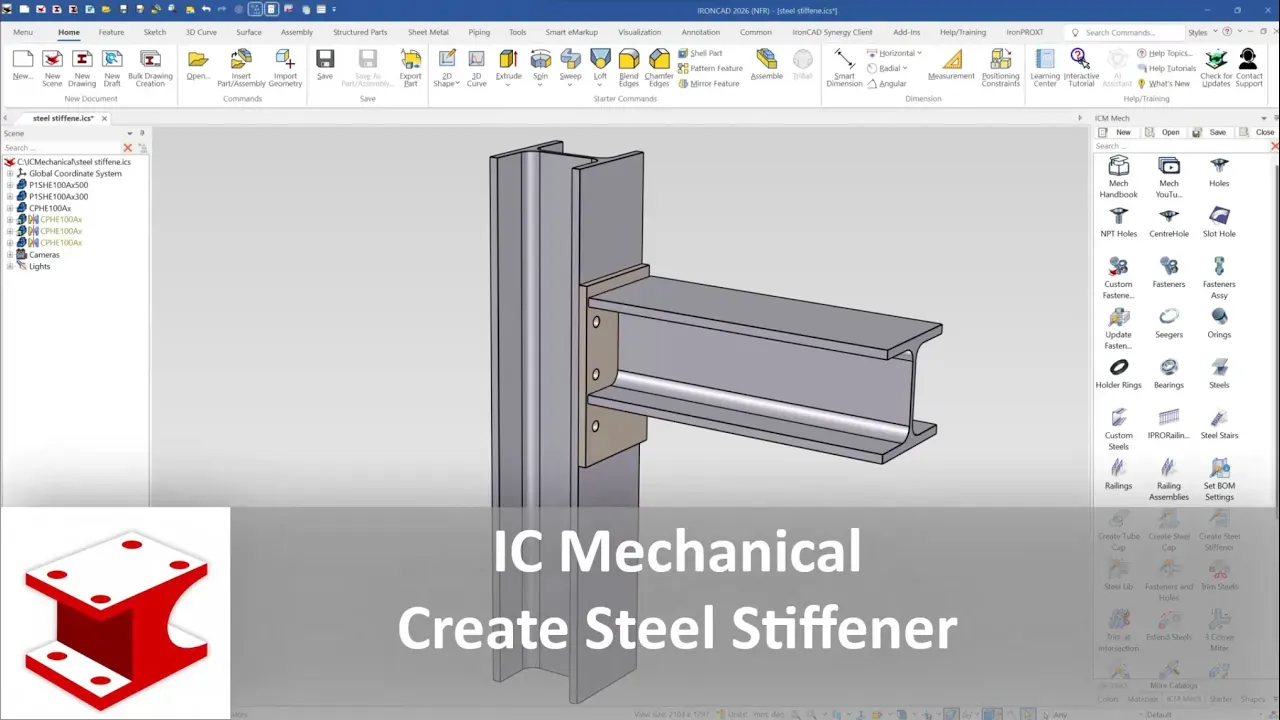
With this tool, you can add various types of Stiffener to steel; simply drag the tool onto the steel.

Positioning
 You can use this icon to control the Reverse the extrusion direction.
Settings

This box allows you to save the component’s current settings. This enables you to quickly retrieve them in future sessions. The buttons here allow you to save, remove, or apply the saved settings.
Profile Type
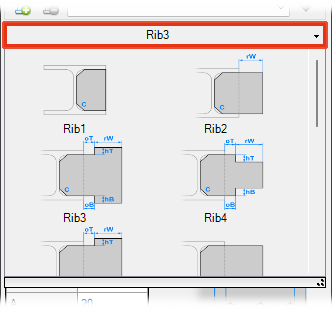
From the combobox it is possible to choose the section of the stiffener profile.
Parameters
The following parameters define the stiffener geometry:

- Th - Plate thickness
- rW - Reinforcement width
- oT - Top offset value - (The lock icon is used to set the same value)
- oB - Bottom offset value
- hT - Top notch height - (The lock icon is used to set the same value)
- hB - Bottom notch height
- C - Corner chamfer dimension
Holes
 By enabling the Holes option it is possible to automatically create hole patterns on the stiffener plate.
Available parameters include:
By enabling the Holes option it is possible to automatically create hole patterns on the stiffener plate.
Available parameters include:
- Diam. - Hole diameter
- Rows - Number of hole rows
- Cols - Number of hole columns
- A & B - Hole spacing distances - (The lock icon is used to set the same value)
Material
The material assigned to the stiffener can be selected directly from the dialog.

BOM Information
The bottom section of the dialog contains the items useful to set the information related to the component. The section is divided in two parts: BOM Information and Custom Information.
BOM Information section contains the same options of the other components, but there is this option more:
 User Name Prefix - This check button controls the enable state of the text item placed on the right. If this button is checked, any string placed in the text item will be used as prefix of the User Name.
Note
When the tool is positioned on one of the ISO and DIN steel types and moved accordingly, the part number prefix changes. Steel caps are categorized by their location: at the Base (prefix F), at the Top (prefix T), and at the End (prefix E). The options for Prefix Name and Prefix Part Number are filled automatically and correctly.
For a detailed explanation of the other items see BOM information