Steel Lib

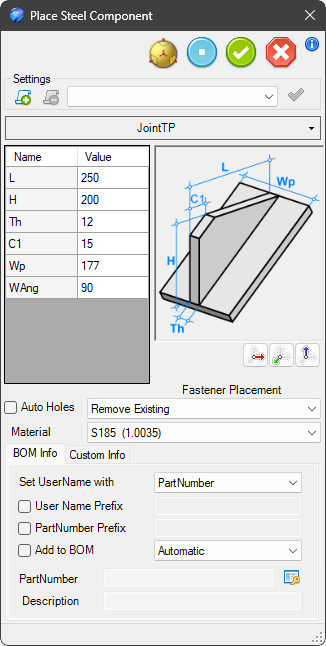
The Steel Lib tool provides access to a library of predefined standard joints.
To add library joint, drag the command onto the desired end of the steel profile (start or end of the member). The joint is automatically generated according to the selected parameters and profile dimensions.
The tool allows users to quickly place commonly used connection elements directly onto steel structures, eliminating the need to manually model plates, stiffeners and joint details.
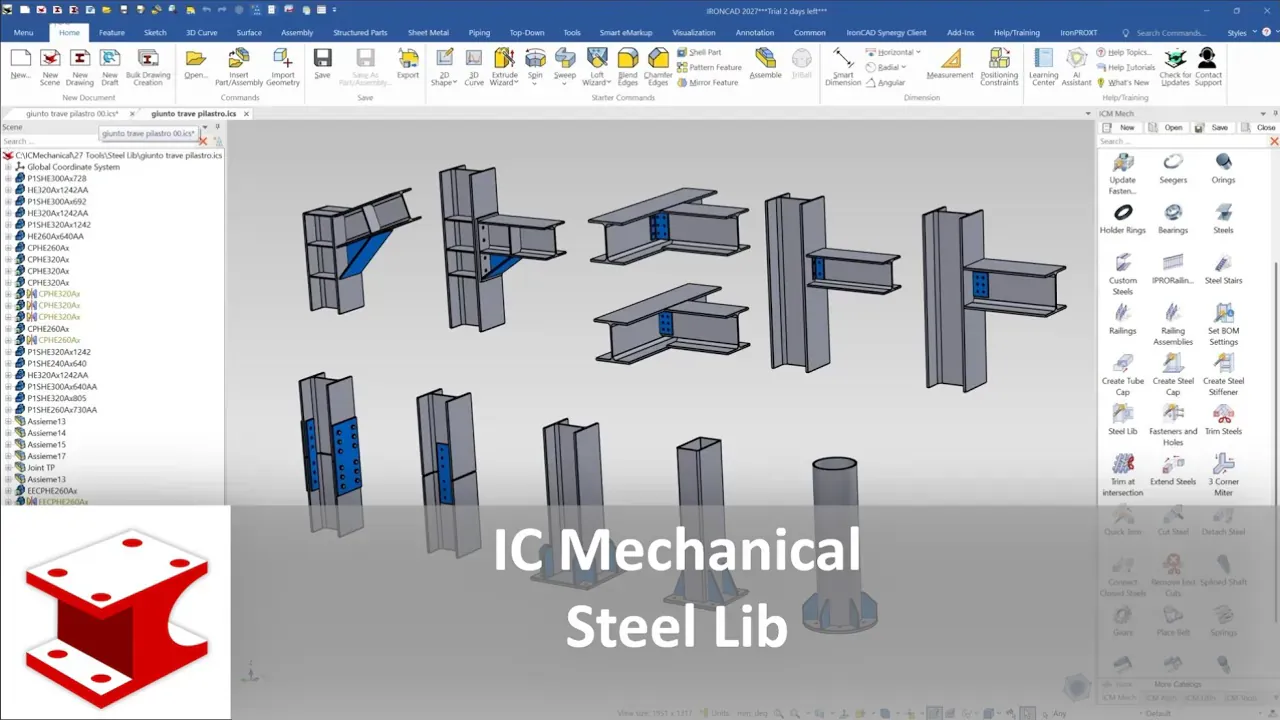
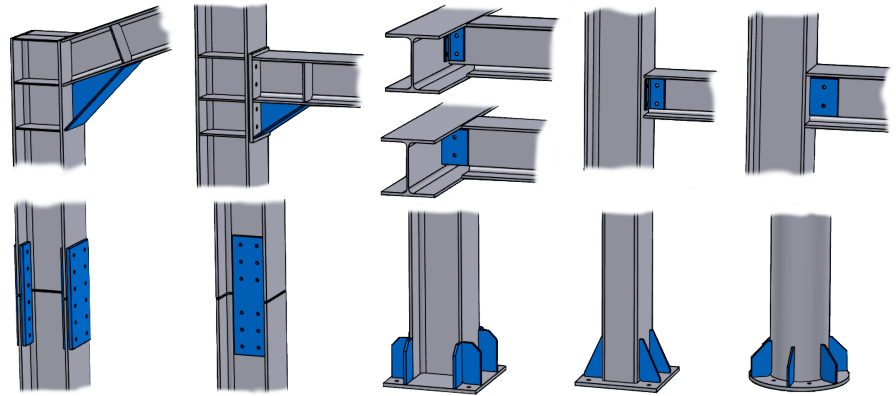
Steel Lib includes a collection of ready-to-use parametric components for structural fabrication, including:
- End plates
- Connection plates
- Reinforcement plates
- Gusset plates
- Beam-to-beam joints
- Beam-to-column joints
- Flange connection components
- Web connection components
- Custom structural joint elements
Each component is automatically adapted to the selected steel members and remains fully editable after creation.
Settings

This box allows you to save the component’s current settings. This enables you to quickly retrieve them in future sessions. The buttons here allow you to save, remove, or apply the saved settings.
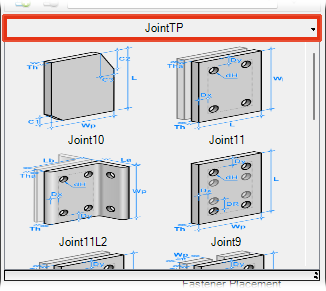
Profile Type
From the combobox it is possible to choose the type of the joint profile.
Parameters
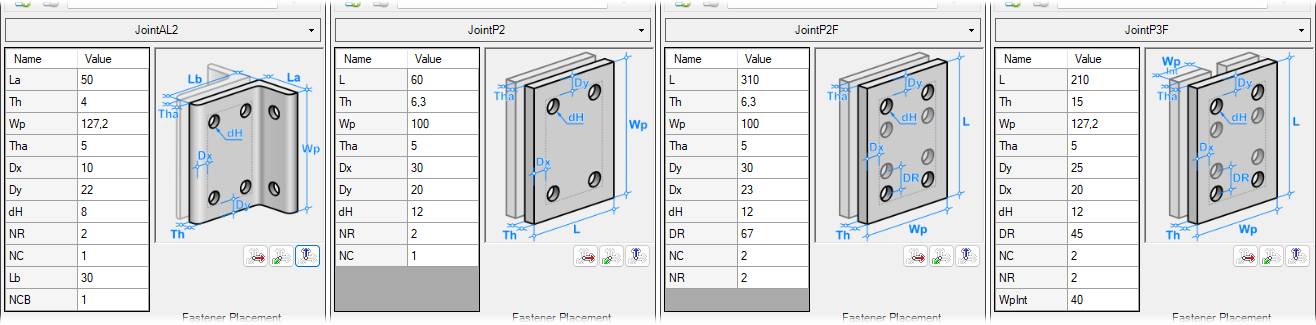
The following parameters define the geometry of the library:
- Th - Plate thickness
- Tha - Web thickness of HE or IPE steel profiles
- Wp - Width of the steel, or steel flange
- Dx/Dy - Distance of the holes from the edge
- dH - Diameter of the holes
- NR - Number of rows of holes
- NC - Number of columns of holes
- others - if there are other parameters (e.g., chamfers, distances and angles)
Note
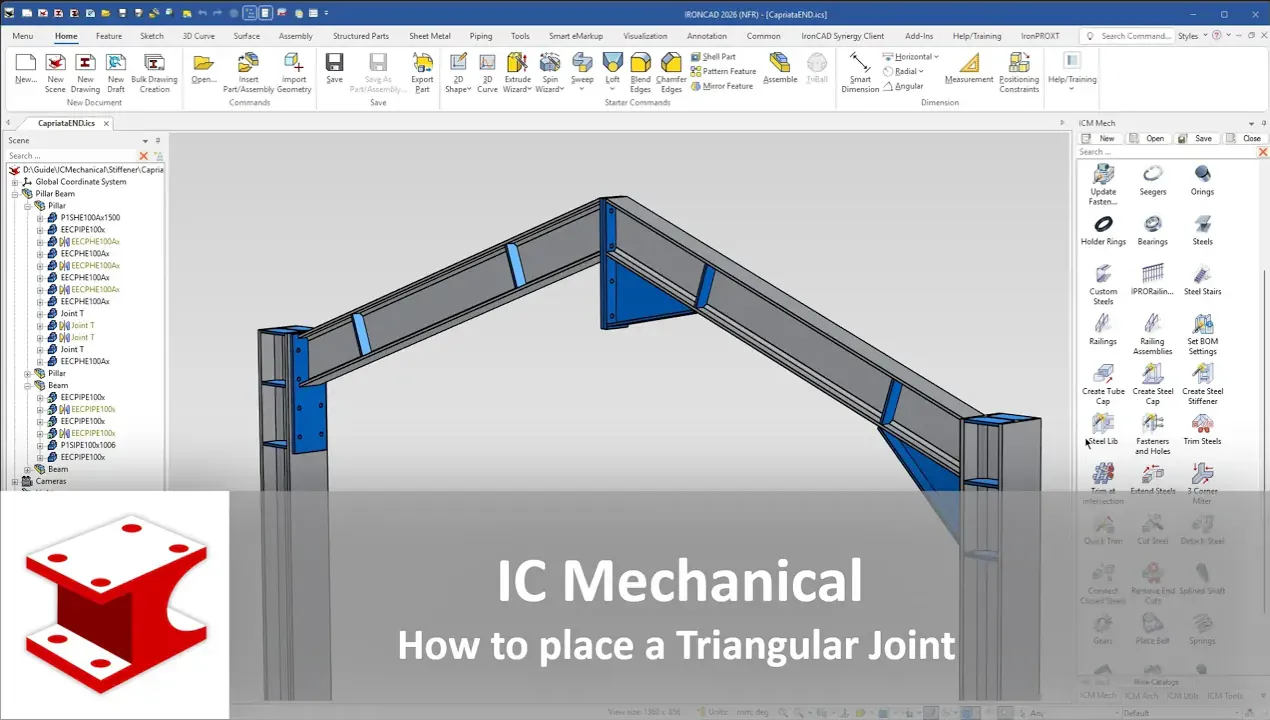
Triangular and Triangular/Plate joints must be positioned on the vertical steel member to ensure the correct angle and width of the member itself.
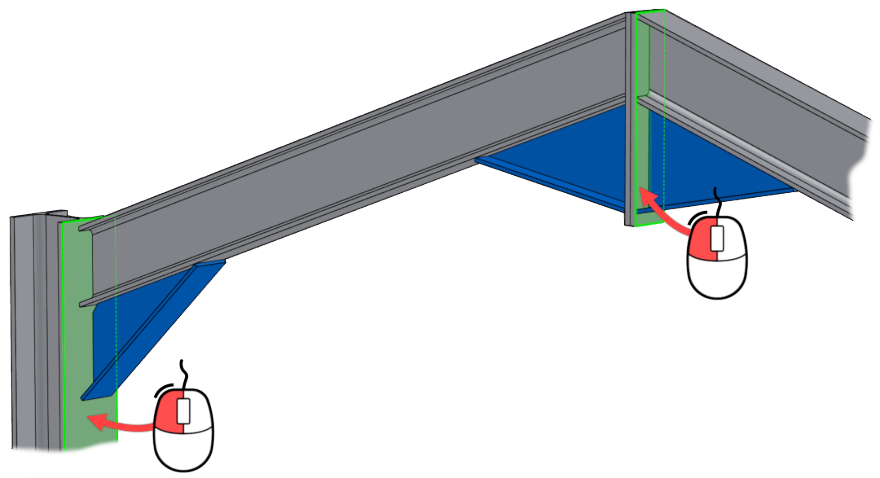
Auto Holes and Fastener Placement
By enabling the Auto Holes option, you can automatically create the corresponding holes in the support element plate.
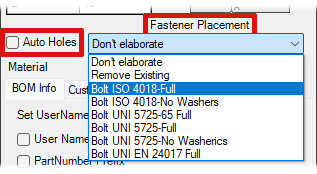 In addition, the drop-down menu under Fastener Placement allows you to add bolt groups.
The available options include:
- Do Nothing - take no action
- Remove Existing - if present, remove the bolt groups
Or you can choose which type of bolts you want to place
- Bolt…type…
Show how add custom Bolt type:
The bolt types you want to use must be saved in the folder
..\Library\SteelsLib\Fasteners
- In a new scene, add a Fasteners Assembly
- Select the bolt type, washer, and nut
- In the parameter table, add these parameters to the assembly:
- IPROCode - sets the component size
- IPROLen - sets the length of the bolt shank
- IPRODist - calculates the thickness of the plates used to position the washer or nut
and all components:
- IPROCode
only to bolt:
- IPROLen
to second washer (or if non here to the nut)
- IPRODist
and referred all to the assembly parameters
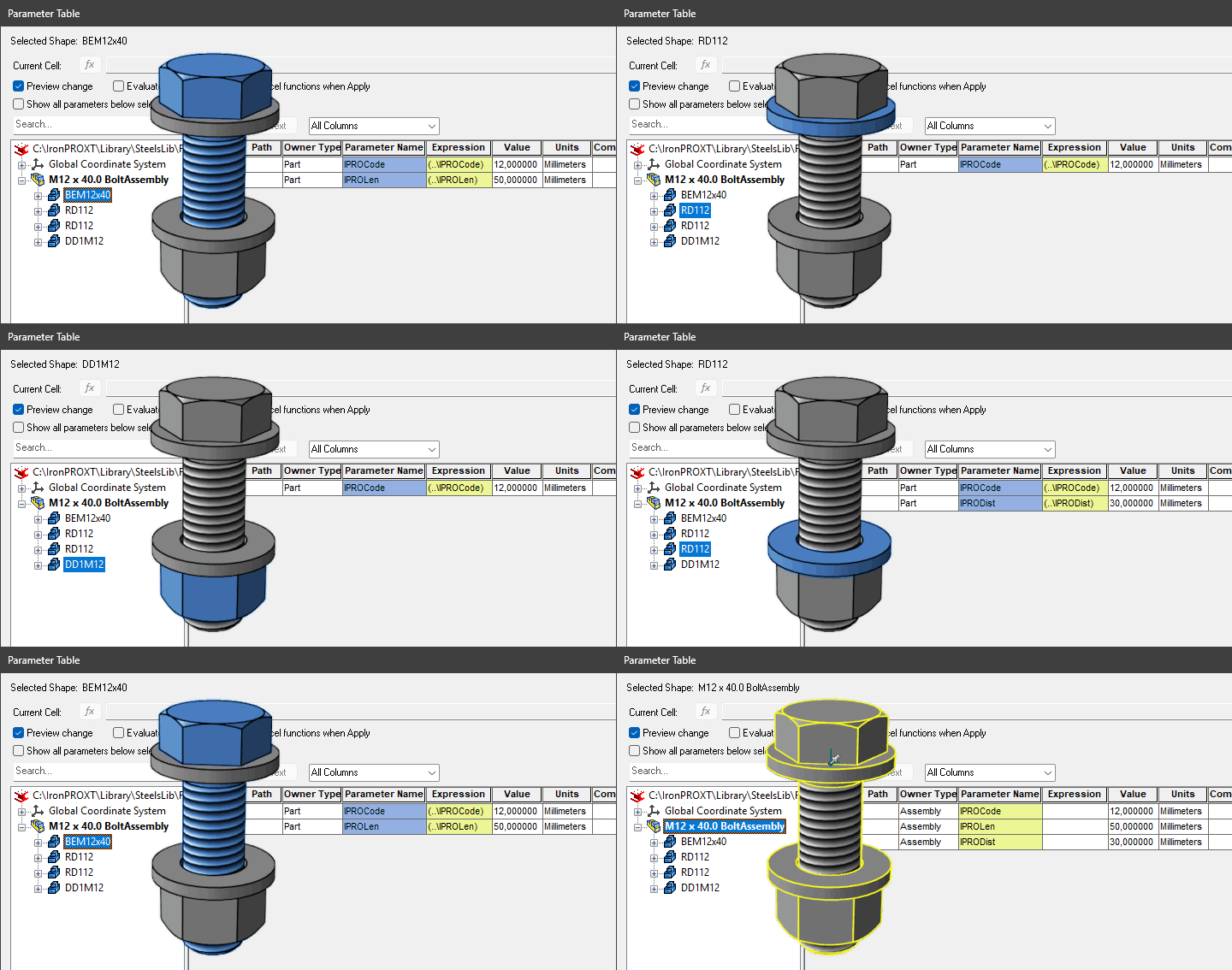
- Save the file with a meaningful name, e.g., Bolt ISO 4018 - No Washers.ics in:
..\Library\SteelsLib\Fasteners
- Library
- Pipes
- Profiles
- RailingsXT
- SteelsLib
- Caps
- Ribs
- DataFiles
- Fasteners
- Bolt ISO 4018 - Full.ics
- Bolt ISO 4018 - No Washers.ics
- Bolt …..
- SteelStairs
- Tabs
Material
The material assigned to the stiffener can be selected directly from the dialog.

BOM Information
The bottom section of the dialog contains the items useful to set the information related to the component. The section is divided in two parts: BOM Information and Custom Information.
BOM Information section contains the same options of the other components, but there is this option more:
 User Name Prefix - This check button controls the enable state of the text item placed on the right. If this button is checked, any string placed in the text item will be used as prefix of the User Name.
Note
When the tool is positioned on one of the ISO and DIN steel types and moved accordingly, the part number prefix changes. Steel caps are categorized by their location: at the Base (prefix F), at the Top (prefix T), and at the End (prefix E). The options for Prefix Name and Prefix Part Number are filled automatically and correctly.
For a detailed explanation of the other items see BOM information
The data structure behind Steel Lib
All the data files related to joints are placed in the folder ...\Library\SteelsLib\DataFiles\MM or ..\INCHES
Below is an example of the files contained in the folder and a description of their structure:
- These files are the same name of the lib joint filename.
- Any row starting with the char
#is considered as a comment. - The row starting with the tag
%is used to read the parameter inside the joint - The fist column, contain the fields of the values related to steels wing or side; the structure of the files are self-explaining.
Example of the JointP3F.dat file
# ==============================
# Fronema - Parametric Library
# ==============================
# Date: June 22, 2026
# Description: Single-plate wing size and reinforcement
#
#----------------------------------------------------------------
% Dim | L   | Th   | Dy | Dx | dH | DR  | NC | NR | WpInt | type
#----------------------------------------------------------------
38    | 100 | 5    | 10 |  6 |  6 |  20 | 2  | 2  | 15    |#U50
42    | 110 | 5    | 10 |  7 |  6 |  25 | 2  | 2  | 15    |#U65 - IPN 80
45    | 120 | 5    | 10 |  6 |  6 |  25 | 2  | 2  | 15    |#UPN 80
46    | 110 | 5    | 10 |  6 |  6 |  25 | 2  | 2  | 15    |#IPE 80
50    | 130 | 5    | 12 |  8 |  6 |  30 | 2  | 2  | 15    |#UPN 100 - IPN 100
55    | 130 | 5    | 15 |  7 |  6 |  30 | 2  | 2  | 15    |#IPE 100 - UPN 120
58    | 180 | 5    | 12 | 10 |  6 |  30 | 2  | 3  | 20    |#IPN 120
60    | 210 | 6.3  | 15 |  9 |  8 |  35 | 2  | 3  | 20    |#UPN 140
64    | 150 | 6.3  | 15 |  8 |  8 |  35 | 2  | 2  | 20    |#IPE 120
...
...
Example of the JointP2.dat file:
# ==============================
# Fronema - Parametric Library
# ==============================
# Date: June 20, 2026
# Description: Web dimension for double plates
#
#---------------------------------------------------------
% Dim | L    | Th  | Wp  | Dx | Dy | dH | NR | NC | type
#---------------------------------------------------------
21.8  | 30   | 5   |  20 |  5 | 5  |  6 | 1 |  2  |#US 50
34.7  | 40   | 5   |  30 |  7 | 10 |  8 | 1 |  2  |#US 65
47.7  | 60   | 5   |  40 | 10 | 20 |  8 | 1 |  2  |#UPN 80
56    | 60   | 4   |  45 | 10 | 20 |  8 | 1 |  2  |#HE 100
59.6  | 60   | 4   |  45 | 12 | 25 |  8 | 1 |  2  |#IPE IPN 80
65.5  | 40   | 5   |  50 | 20 | 10 |  8 | 2 |  1  |#UPN 100
74    | 40   | 4   |  60 | 20 | 12 |  8 | 2 |  1  |#HE 120
74.6  | 40   | 4   |  60 | 20 | 12 |  8 | 2 |  1  |#IPE IPN 100
83.4  | 50   | 6.3 |  65 | 25 | 12 |  8 | 2 |  1  |#UPN 120
92    | 50   | 5   |  80 | 25 | 16 | 10 | 2 |  1  |#HE 140
...
...
All the data files related to joints are placed in the folder ...\DataFiles\MM or ..\INCHES
- Library
- Pipes
- Profiles
- RailingsXT
- SteelsLib
- Caps
- Ribs
- DataFiles
- INCHES
- MM
- JointAL2.dat
- JointP.dat
- JointP2.dat
- Joint …..
- Fasteners
- SteelStairs
- Tabs